Qwen-Image-2.1 supports a maximum of:
10 Reference Images at once.
When seeing this feature,
the most intuitive approach might be to:
Upload a photo of the person.
Upload a product image.
Upload a clothing picture.
Upload a background or scene photo.
Upload a style reference as well.
And then say:
“Create an image combining all of these.”
But the more images you add,
if you don’t clearly specify what each image represents,
the AI will have to guess on its own.
Today we’ll learn just one method:
Assign only one main task to each image.
Don’t write the prompt first—assign tasks to each image first
Suppose you want to create an advertising photo where:
A person is holding a specific bag,
wearing a specific jacket,
and standing inside a specific café.
You have four Reference Images.
Don’t just say:
“Use these four images as references to generate the image.”
First, assign each image its own role.
For example:
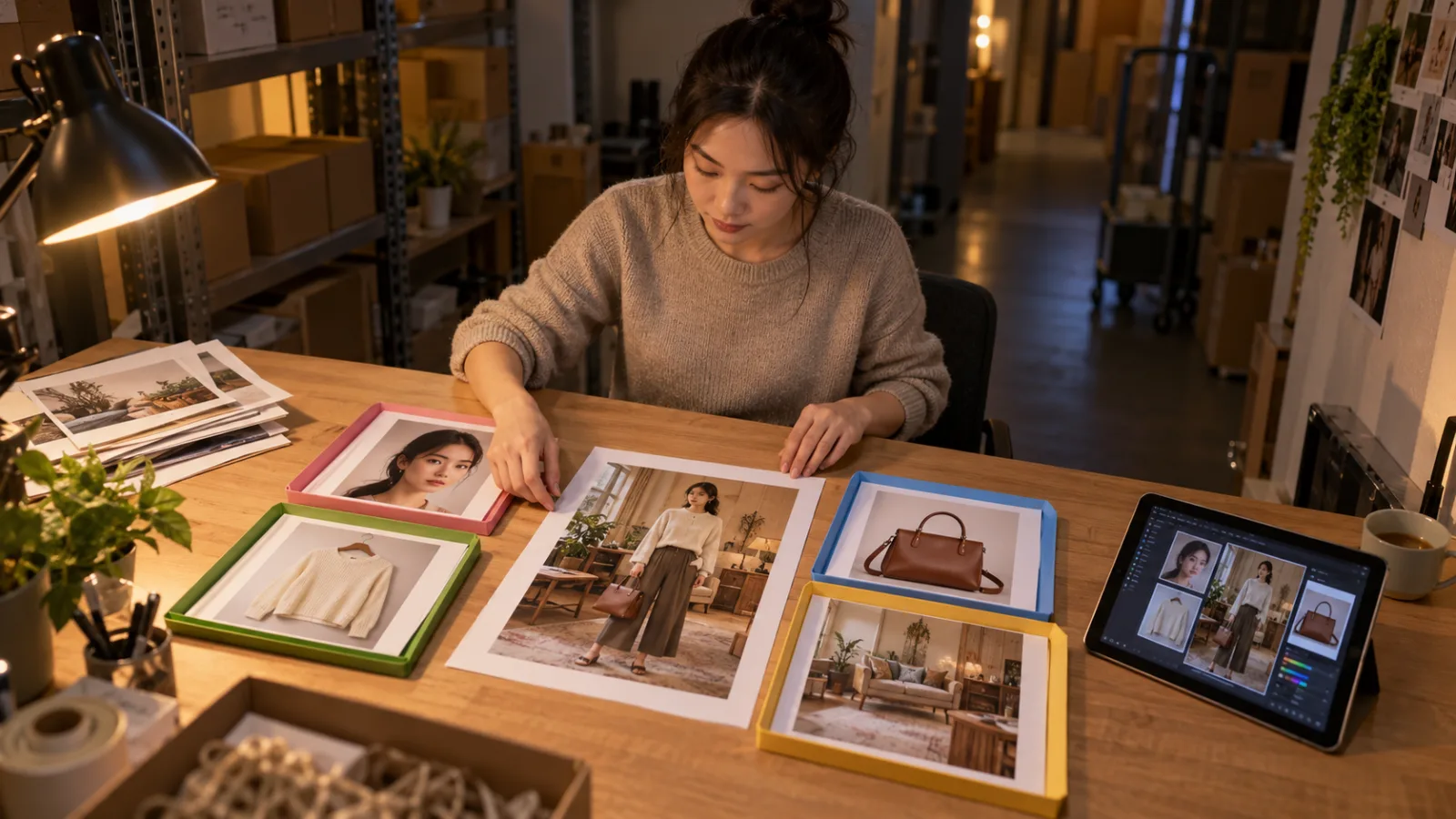
Image 1: Character Identity
Only reference:
face,
hairstyle,
general character features.
Image 2: Clothing
Only reference:
jacket style,
color,
material.
Image 3: Product
Only reference:
bag appearance,
proportions,
main structure.
Image 4: Scene
Only reference:
café space,
furniture layout,
environmental atmosphere.
Then give the final instruction:
Combine the character from Image 1, wearing the jacket from Image 2, holding the bag from Image 3, placed in the café from Image 4.
This is much clearer than simply saying:
“Please blend these four images together.”
This is how the official demo does it
Qwen-Image-2.1’s official virtual try-on example
does not use five similar photos of the same person.
Instead, five images each provide different elements:
Model.
Clothing.
Shoes.
Bag.
Hat.
The final result is:
a complete outfit.
They’ve also shown examples using
10 furniture reference images
to create a full interior design.
This already hints at the best way to use multiple references:
Each image contributes a clear, distinct asset.
Not:
Letting the AI reference everything in all images at once.
Why does “reference everything” cause problems?
Suppose Image 1 is a photo of a person.
In it, besides the face, there are also:
a black T-shirt,
a white wall,
a chair,
warm lighting.
But what you really want is:
just the person.
If you only say to the AI:
“Reference Image 1,”
then the model must decide whether to keep:
the person?
the clothing?
the background?
the lighting?
the pose?
At the same time, images 2, 3, and 4 each come with their own:
background,
lighting,
composition,
colors.
This information can conflict and compete with each other.
Therefore, the better approach isn’t to write an extremely long prompt from the start.
Instead, first answer the question:
What is each reference image’s purpose?
The simplest format: image number + role + content focus
You can write prompts like this:
Image 1 | Character
Reference only the person’s identity and facial features.
Image 2 | Clothing
Reference only clothing style, material, and color.
Image 3 | Product
Reference only product shape and proportions.
Image 4 | Scene
Reference only the space and environment.
Finally:
Combine these four elements into a 16:9 realistic commercial photo.
This is the entire technique for today.
It’s not about memorizing more keywords for the prompt.
It’s about:
Assigning each image a clear responsibility.
In ComfyUI, you can directly refer to images as image_1, image_2, etc.
If you’re running Qwen-Image-2.1 yourself,
the official ComfyUI workflow template offers a clear method.
Reference Images can be loaded sequentially as:
image_1
image_2
image_3
… up to:
image_10.
In your prompt, you can then directly specify:
<image1>
<image2>
and so on.
For example:
“Use the character from <image1>, wearing the clothing from <image2>.”
The advantage of this method is:
Don’t make the model guess which image means “the previous one,” “the one on the right,” or “that product photo.”
When you have many images,
specifying the source directly is much clearer.
When editing an existing image, the first image’s role is especially important
ComfyUI’s Qwen-Image-2.1 editing template has a practical rule:
image_1 is the Edit Target.
Meaning:
This is the main base image you want to modify.
The other images serve as references.
For example:
image_1:
Original photo of the person.
image_2:
New jacket.
image_3:
New bag.
The task is then clearly defined:
Not to blend all three photos equally.
But rather:
Use image_1 as the base, and extract specific elements from image_2 and image_3.
This is easier to understand than treating all images as having equal status.
Don’t force in unnecessary reference images just because the limit is 10
Another common misunderstanding is:
Since you can use up to 10 images,
does using 10 images yield the best results?
No.
“Up to 10” simply means:
the model’s maximum capacity to accept images.
It is not:
the optimal number of images.
If you only need:
character,
product,
and scene,
then three images are enough.
Adding more:
three more character angles,
two style photos,
two other scene images
may not improve the result.
It could even increase the visual data the model must process,
leading to confusion.
Before adding each image, simply ask:
Does this image provide new information not present before?
If not, don’t add it yet.
An exception for multi-angle images of the same subject
“One image, one task”
does not mean you can only provide one photo per character forever.
If you want to improve character consistency,
you might have:
front view,
side view,
and waist-up view.
All three belong to:
the same task: character identity.
The real instruction to the model is:
these three images all describe:
the same person.
Don’t let the AI interpret the three photos as:
three different people.
So the clearer principle is:
One group of references serves one single role.
The same applies to products
For example, a bag,
the front view doesn’t show:
side structure.
The back view doesn’t show:
buckle details.
In this case you can provide:
front,
side,
and back views.
But they all only fulfill:
the product’s identity and structure.
Don’t at the same time ask to preserve:
the background from one image,
the lighting from another,
and the table surface from a third.
This is different from earlier “keep-only-prohibit” prompt divisions
SasaDaily taught on August 6:
Before local editing, split the prompt into:
keep / only change / forbid
That solved the problem of:
how to define edit restrictions when modifying a single existing image.
Today’s topic addresses a different problem:
when many reference images are input, how to avoid role conflicts between sources.
So today we don’t first ask:
“Which parts cannot change?”
Instead, first ask:
“What exactly does each reference image represent?”
Both methods can be used together.
Remember this sequence for next time
Next time you prepare multiple reference images for Qwen-Image-2.1,
don’t:
upload 10 images
→ write one prompt
→ then hope the model understands.
Instead:
Select only the truly necessary images first
↓
Assign one role to each image
↓
Group multiple angles of the same role
↓
Finally describe the entire composed image
The simplest way is to say:
Image 1: Who the person is.
Image 2: What they wear.
Image 3: What they hold.
Image 4: Where they are.
When the number of Reference Images grows,
the most important prompt skill is not:
to write more,
but to:
avoid letting any one image carry too many roles.
Today, progress a bit with AI.
Learn one AI tip every day.
Save a little time every day.
Improve your skills a bit each day.
SasaDaily, growing with you.