If you regularly have:
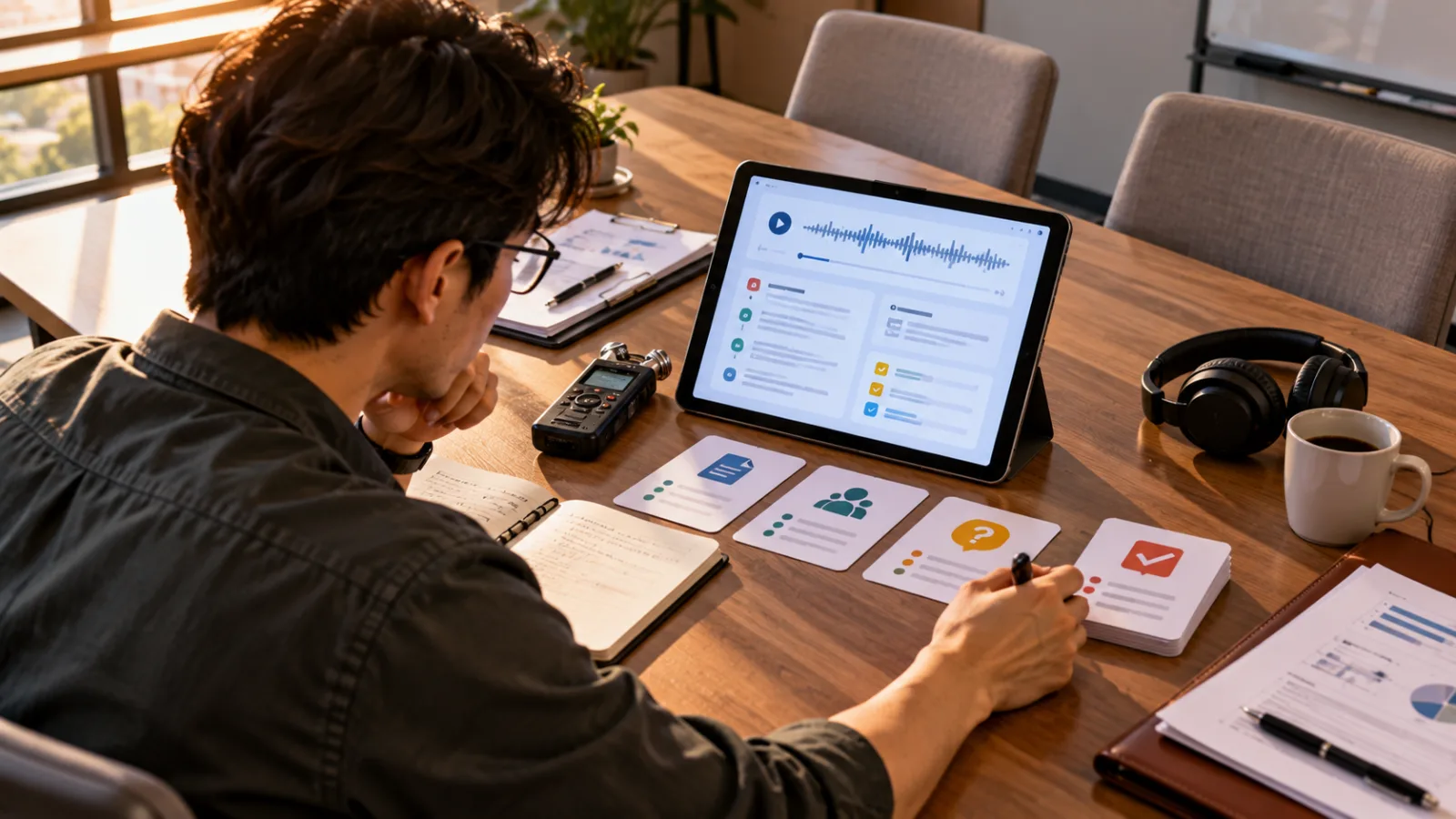
Meeting recordings,
Client interviews,
Lecture recordings,
Podcast interviews,
Voice notes,
the real hassle usually isn’t:
“I didn’t record it.”
But rather, after recording,
you still have to turn the audio into:
Transcripts,
Summaries,
To-dos,
Decisions,
before you can actually use it for work.
Now ChatGPT offers a very direct solution:
Upload the audio file directly.
How is this different from ChatGPT Voice?
ChatGPT Voice lets you:
Speak directly to the AI in real time.
The new Audio Upload means:
You already have a recorded audio file, and you hand it over to ChatGPT for processing.
For example, after a 45-minute customer meeting,
you already have:
An M4A file on your phone.
Previously, you might have had to:
Upload it to a transcription service →
Get the transcript →
Copy it into ChatGPT →
Then ask the AI to organize it.
Now you can go straight from:
Audio file → ChatGPT.
Which formats can be uploaded?
OpenAI currently supports these audio formats:
WAV,
MP3/MPEG,
OGG/OGA,
PCM,
FLAC,
AAC,
M4A,
and:
Audio-only WebM,
Audio-only MP4.
Common formats for phone recordings and meeting recordings are mostly covered.
Note:
If WebM or MP4 files are recognized as:
Video files
instead of audio-only,
they currently cannot be processed as audio uploads.
Single audio file limit is 512MB
OpenAI states the audio upload size limit is:
512MB.
For very long recordings,
when Data Analysis becomes available,
the file might be split into smaller segments for processing.
But OpenAI also emphasizes:
This is a:
Best-effort feature.
Extremely long recordings can timeout.
If you have an all-day seminar or several hours of audio,
don’t assume:
the entire file will be processed fully at once.
When necessary, it’s still best to split the file by:
Meeting,
Section,
or Topic.
Basic usage: Don’t ask for summaries first
Many people upload a recording and immediately say:
“Help me summarize.”
If the recording is important,
a better first step is:
Generate the transcript first.
Because if later the AI says:
“The client decided to launch in November.”
You can refer back to the transcript to confirm:
Was it a firm decision,
or just:
“We hope to launch in November.”
These two statements are very different.
So the initial request can be:
“Please fully transcribe the audio without interpreting conclusions; mark uncertain parts.”
Step 2: Turn the transcript into actionable tasks
The transcript itself is not the final product.
The real value lies in:
Extracting what needs to be done next from the audio.
For example, a client meeting transcript can be further broken down by ChatGPT into:
Confirmed
What actions are definitely decided?
To-do
Who is responsible for what?
Open Issues
What topics were discussed but remain unresolved?
Needs Verification
Which numbers,
dates,
or names
need reviewing against the audio again?
This approach gets you closer to actual work,
rather than simply producing a “five-point meeting summary.”
Step 3: Ask direct questions about the recording
The new Audio Upload has another very useful difference.
After the audio is loaded into the same chat,
you don’t just get a transcript.
You can keep asking:
“Where did they talk about the launch date?”
“What was the client’s biggest concern about pricing?”
“Find all mentions of refund policies.”
“Which tasks from this meeting don’t have an owner yet?”
“Summarize a follow-up email for the team.”
In other words, the recording starts as:
a file
and becomes:
an interactive context you can query further.
You can handle a full meeting this way
Suppose you just finished a 40-minute client interview.
Drop the recording into ChatGPT and you can do four steps in sequence.
1. Transcript
“Generate a full transcript, marking uncertain names, numbers, and jargon.”
2. Decisions
“List only confirmed decisions from the meeting; don’t count suggestions or ongoing discussions as decisions.”
3. Actions
“List next steps with assigned owners and deadlines; mark any unclear points as needing confirmation, don’t guess.”
4. Follow-up
“Draft a post-meeting email based on confirmed items, list open questions separately, and don’t make new promises for the client.”
The real time saved is not:
Typing speed,
but:
Turning audio into actionable follow-up work without redoing it yourself.
Also great for interviews
Say you’re doing:
Market research,
Interviews,
or Client needs analysis.
For an hour-long recording,
the hardest part is usually finding:
Exactly where an important statement was made.
Now you can transcribe first, then ask:
“Summarize the three main issues the interviewee mentioned repeatedly.”
Or:
“List all parts where pricing was discussed.”
But keep in mind an important boundary:
The AI’s “three main issues”
are based on its own summarization of the recording,
not the exact words of the interviewee:
“My three biggest problems are these three.”
For formal research or journalism,
always check the original recording for accuracy.
Lecture recordings aren’t just for summaries
Students or learners can use their recordings to:
Create chapters,
Organize concepts,
Find examples the teacher gave,
Generate review questions.
For example:
“Separate concepts the teacher explained thoroughly from those just mentioned by name.”
Or:
“Find three instances where the teacher actually gave examples.”
This often yields more useful results than just asking AI to:
“Summarize key points.”
Main limitation: Transcripts aren’t 100% accurate
OpenAI specifically warns:
Transcripts may contain errors.
And:
Speaker identification may be unreliable.
This is especially important for meetings.
If the AI mistakenly attributes:
Speaker A’s words
to Speaker B,
the summary might still sound reasonable,
but responsibility is wrongly assigned.
So whenever dealing with:
Amounts of money,
Dates,
Client commitments,
Contracts,
Medical information,
Legal matters,
or formal decisions,
don’t rely solely on the transcript.
Always listen back to the:
Original recording.
Performance varies by language
OpenAI clearly states:
Audio understanding
and
transcription accuracy
may vary with different languages.
So just because:
English meetings work well,
don’t assume:
Mandarin,
Taiwanese,
mixed Chinese-English,
or overlapping speakers
will be equally accurate.
The best test:
Take a 10-to-15-minute recording you know well,
to check which types of errors occur most often,
such as names,
numbers,
terminology,
or speaker labels.
Who can use this now?
Currently, audio upload is:
Not available on the free plan.
OpenAI says it’s offered to:
Paid ChatGPT subscribers
and
Workspace users,
including Enterprise.
But actual availability can depend on:
Workspace settings,
Region,
Client version,
and Selected model.
If you don’t see the option to upload audio,
it doesn’t necessarily mean you’re doing anything wrong.
It’s different from ChatGPT Record Mode
Don’t confuse these two features.
Audio Upload
You already have a file like:
MP3,
M4A,
or WAV,
and you attach it to ChatGPT.
ChatGPT Record
Records meetings or voice notes directly:
Creates transcripts and summaries afterward.
The two have different entry points.
If your meetings are recorded via:
Phone recorder,
Zoom,
voice recorders,
or other systems,
Audio Upload is a more straightforward option.
What if others’ voices are in the recording?
This is another important boundary to consider before using.
Meetings,
Client interviews,
and employee conversations
may contain:
Personal data,
Business secrets,
and internal decisions.
Just because it’s technically possible to upload,
doesn’t mean:
Your company policy or local regulations allow it.
Before submitting work recordings to AI,
always confirm:
If you have the rights to process the recording,
If it contains any data that shouldn’t be uploaded,
and whether your company has specific AI usage policies.
If unsure,
don’t upload whole files just for convenience.
The real value isn’t just “AI can transcribe”
Speech-to-text isn’t new.
The key difference now is:
Audio, transcript, analysis, follow-up questions, and next steps stay within one conversation.
Previously work flowed:
Record →
Use transcription tool →
Download →
Copy →
ChatGPT →
Summarize →
Rewrite into email.
Now it can be:
**Record →
ChatGPT →
Transcript →
Questions →
Decisions →
To-dos →
Follow-up.**
If you have lots of weekly:
Meetings,
Interviews,
Lessons,
or Voice notes,
the real test isn’t:
“Is transcription cool?”
But rather:
Can it reduce the time you spend reorganizing information after meetings?