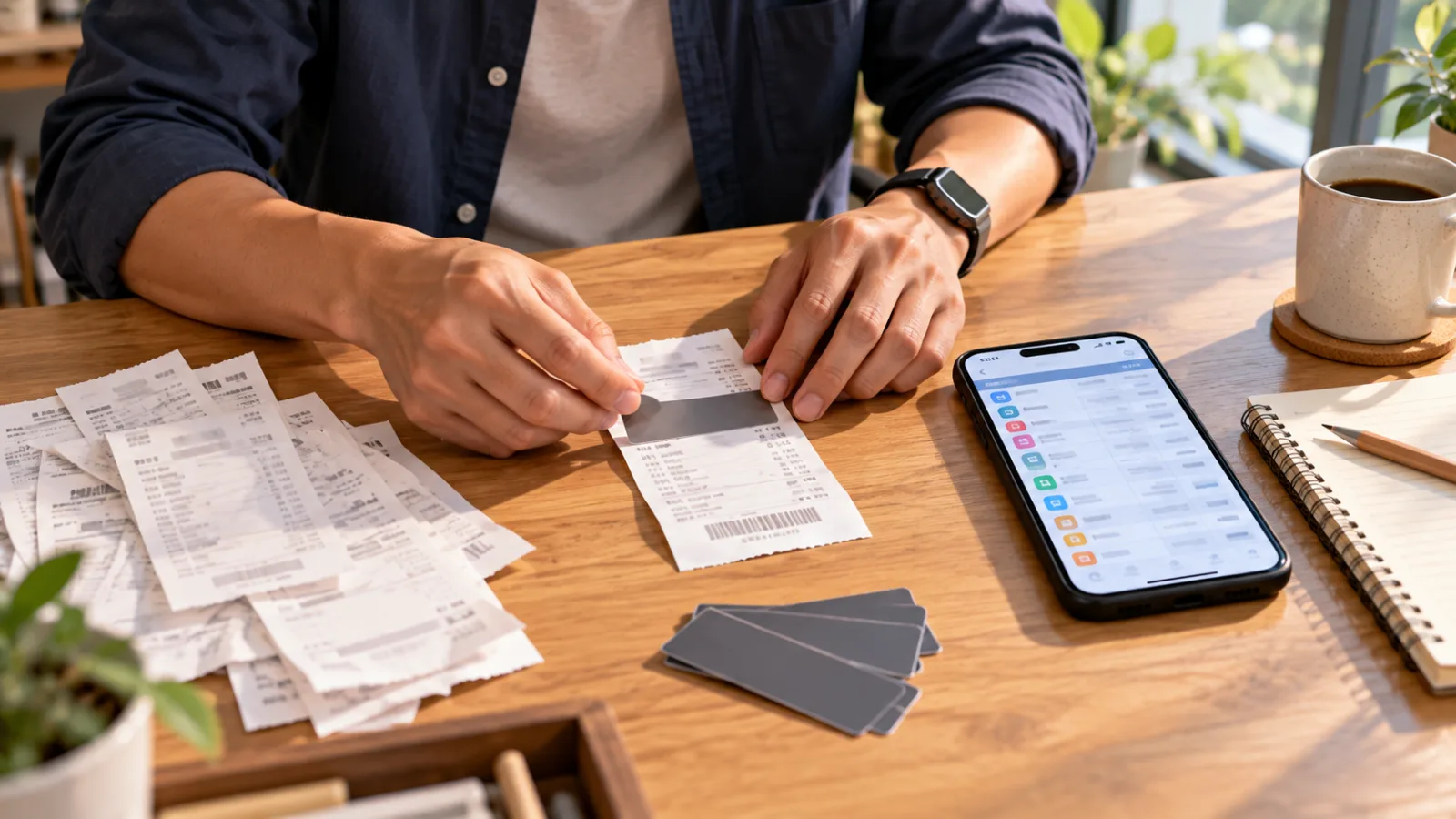
Do you deal with this every month when organizing receipts?
Holding a stack of paper receipts, checking dates, stores, and amounts one by one, then manually entering the numbers into Excel or bookkeeping software.
Now you can try a different approach: take photos of your receipts and ask ChatGPT to help extract the information and organize it into a table.
But there’s an important premise:
Just because AI can read photos doesn’t mean it will get every amount correct.
Today, you’ll learn 3 steps in one minute: Mask Data → Extract Fields → Verify Totals.
1. Can ChatGPT directly read receipt photos?
Yes.
ChatGPT supports uploading images and can answer questions or organize information based on the image content.
For example, you can take a picture of a receipt and ask it to identify the date, store name, purchased items, and amounts.
However, OpenAI officially cautions that blurry images, rotated text, and complex layouts may cause recognition errors.
Therefore, the first suitable task for AI is to produce a draft data organization—not to finalize accounts or official bookkeeping.
2. Step One: Before uploading, mask any unnecessary personal data
First, take a clear photo of the receipt.
Try to lay the paper flat and use even lighting to avoid shadows covering amounts.
Then check if the photo includes sensitive information unrelated to this organization, such as:
- Full credit card numbers or payment account details
- Private addresses, phone numbers, or customer names
- Membership or identification info that AI doesn’t need
Mask these as much as possible, keeping only the date, store, and amount visible for recognition.
One important note: Do not alter the original receipt itself.
Keep the original receipt and create a working copy where personal data is obscured on your device before uploading to AI.
3. Step Two: Ask AI to extract fixed fields, don’t just say “Help me with bookkeeping”
Many people upload a photo and simply type:
“Help me organize this receipt.”
This might give you a table but without specifying which fields must be included or how to handle unclear information.
A better approach is to tell AI:
Extract only the visible information on the receipt, and mark uncertain parts as "To be confirmed".
You can use the following prompt directly:
Prompt You Can Use Directly
Please help organize a draft expense report based on the receipt photo I uploaded.
Follow these rules:
- Process each receipt separately; do not combine amounts from different receipts.
- Extract only the information visible in the photo; do not fill in missing details.
- Output a table including: receipt number, date, store, currency, subtotal, tax, total amount, and any fields to be confirmed.
- If subtotal or tax is not shown, mark as "Not displayed" rather than 0.
- If the total already includes tax, do not add tax again.
- Mark any unclear date, amount, or store name as "To be confirmed" without guessing.
- List any items that require me to double-check against the original receipt.
Note: This is only a draft data organization and does not mean payment has been made or the document is suitable for accounting or tax purposes. Do not automatically update your official books.
4. Step Three: Verify totals, especially avoid "double-taxing" included tax
This is a commonly overlooked point when organizing receipts.
For example, assume a sample receipt showing:
- Copy paper: 200
- Notebook: 100
- Subtotal: 300
- Tax: 15
- Total including tax: 315
The correct total is 315.
If AI mistakenly adds the 15 tax on top of 315, it would incorrectly total 330.
This example is hypothetical, designed to explain the method—not from actual receipt recognition tests.
When organizing, distinguish clearly between:
Subtotal, tax amount, and total including tax as three separate fields.
If the receipt clearly shows these, extract accordingly. If printing is blurry, tax fields unclear, or totals don't add up, check the original receipt manually.
Don’t rely solely on an AI-generated table that looks complete before importing it into your official records.
5. What manual checks are needed after AI organizes receipts?
At minimum, verify three things.
First, confirm the date, store, and amounts in the photo match the AI’s table.
Second, ensure the same receipt has not been photographed and processed multiple times, causing duplicate expenses.
Third, confirm the expense actually occurred, decide which expense category it belongs to, and whether it can be used for reimbursement or tax declaration.
This last part cannot rely on AI simply reading photos; it requires the original documents, actual payment records, and applicable regulations.
If you have many receipts at once, start with a small batch to confirm the fields and checking method before scaling up.
The one thing to remember today
Using ChatGPT to organize receipts is best suited for:
Turning paper information into a structured draft you can review.
Don’t immediately ask it to do full bookkeeping, tax calculation, reimbursement, or approval decisions.
Mask personal data first, extract fixed fields, then verify totals. Have AI handle organizing, and humans handle checking.
If you want to know which step in your workflow is best suited for AI, comment "process".